
Appearance
Features
Everything here works in the app today. Workflows, schedules, AI and the other automation features need the Pro or Team plan; seeing and controlling phones works on every plan.
See and control
- A live fleet. Every connected phone is a tile with its screen, its name, its connection, its mode (Auto, Manual or Paused) and anything that needs you. The phones on screen stream live; the rest refresh as pictures, so hundreds of phones stay fast.
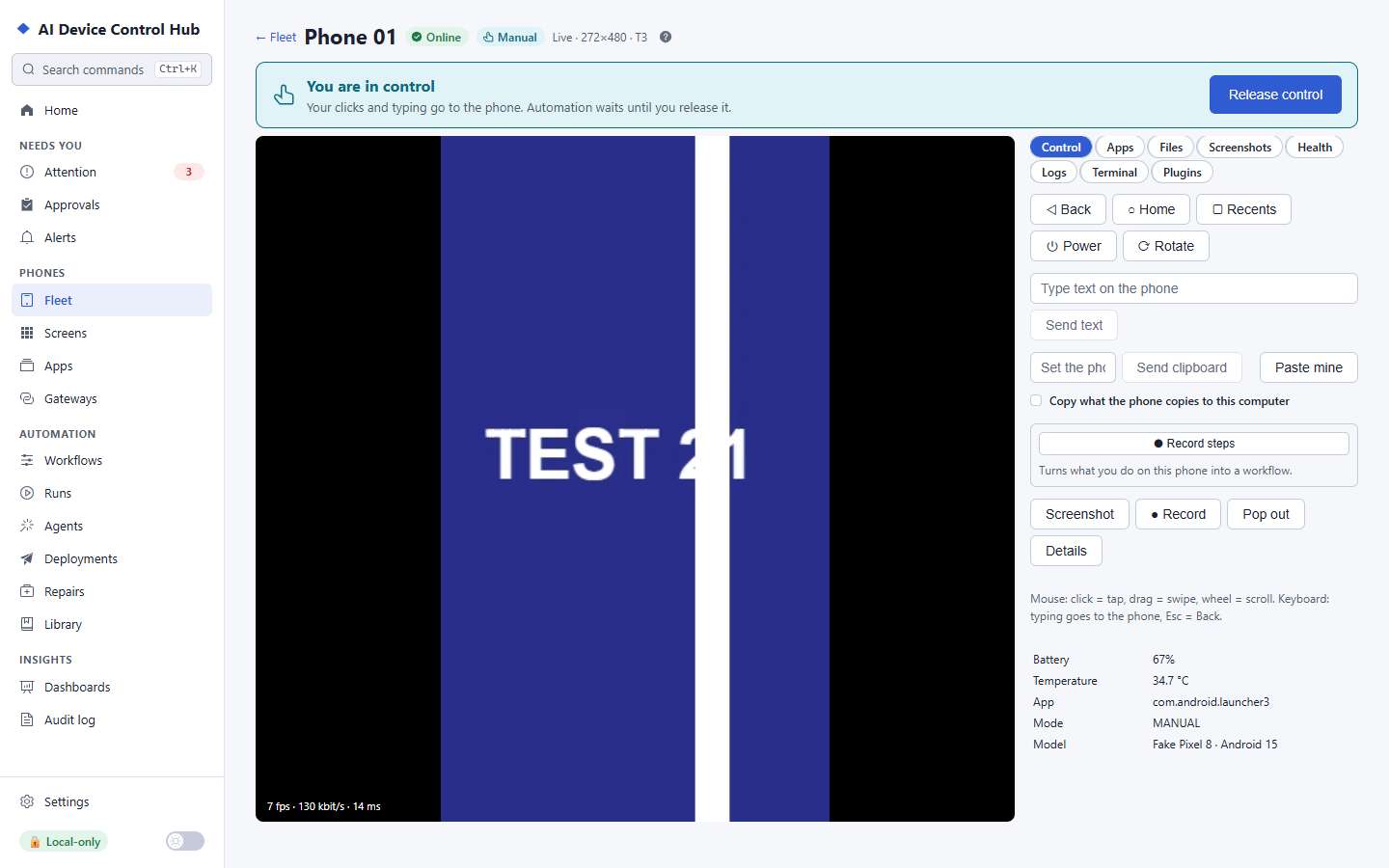
- One click to take over. Open a phone and work on it with your mouse and keyboard. The page always says whether you are in control, and automation never touches a phone a person is using.
- Everything on the phone. Files (drag and drop), app installs and removal, the list of apps, logcat, the clipboard and a terminal with restricted commands.
- Organise. Groups (by hand or by rule), pins, filters, saved views and a wallboard for a second screen.
- Health at a glance. Battery, charging, temperature, storage, memory, the app in front and the connection, with problems shown in red.
Automate
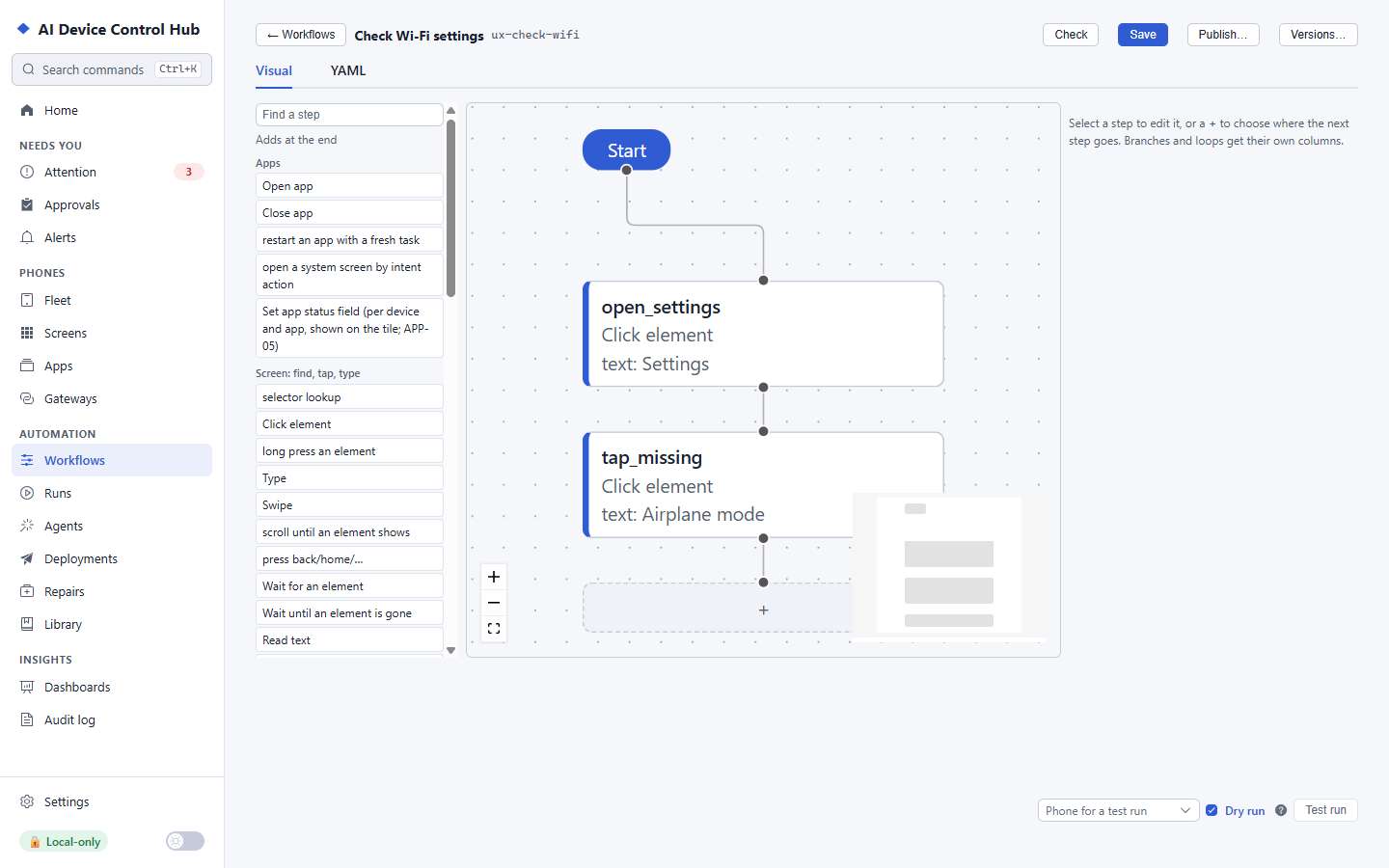
- Workflows. Build them in a visual editor or as YAML, or record one by doing the task once on a phone. Steps find screen elements by their text and role first, and fall back to image and text recognition on the screen.
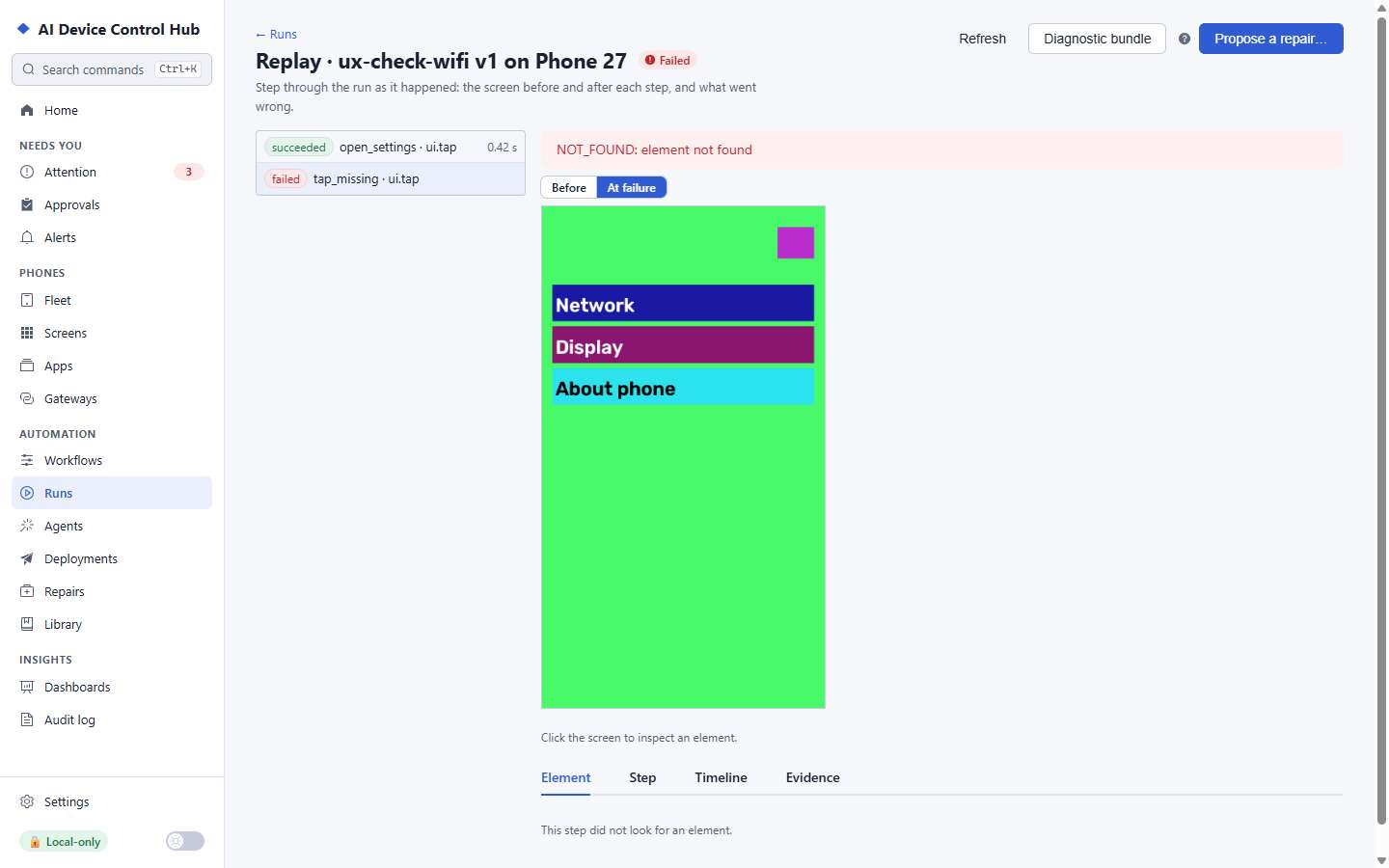
- Runs on any number of phones. Start a workflow on one phone, a group or every phone that matches; each run has a timeline with screenshots and can be replayed step by step.
- Schedules. Run workflows at set times, at intervals or once, with a choice of what happens when a run is missed.
- Group actions and broadcast. Install an app, launch it, reboot or take screenshots on many phones at once, or mirror your input from one phone to others.
- Safe roll-outs. Publish a new workflow version to a few phones first and roll back if it fails.
- Integrations. Start workflows from signed webhooks or a CI pipeline, use the Python and TypeScript SDKs, and export results with plugins.
AI, with your own model
- AI tasks. Give a goal for one phone, a group or every phone; the AI works through the same tools you have and you can read every step afterwards.
- Agents per phone. An agent with its own instructions, allowed apps, working hours, memory and spending limit.
- AI clients. Claude Code, Codex or any MCP client can use your phones through the Hub, with the rights you give them.
- Your choice of model. OpenAI, Anthropic or Google with your own key, or a model on your computer through Ollama or another OpenAI-compatible server. No plan includes AI usage; budgets per model cap the spend.
- Boundaries that hold. AI stays in the apps you allow, asks a person before payments and account-security changes, never types into password fields, and stops at CAPTCHAs, sign-in checks and other human-only steps.
Watch over the fleet
- Attention and alerts. Problems and failed jobs gather in one place; alert rules notify you on the desktop, by email or by webhook.
- Dashboards. Success rates, durations, utilisation, app versions and model costs over time.
- Screen intelligence. Group phones by what their screens show, spot the odd one out, and see recurring failures.
Security and privacy
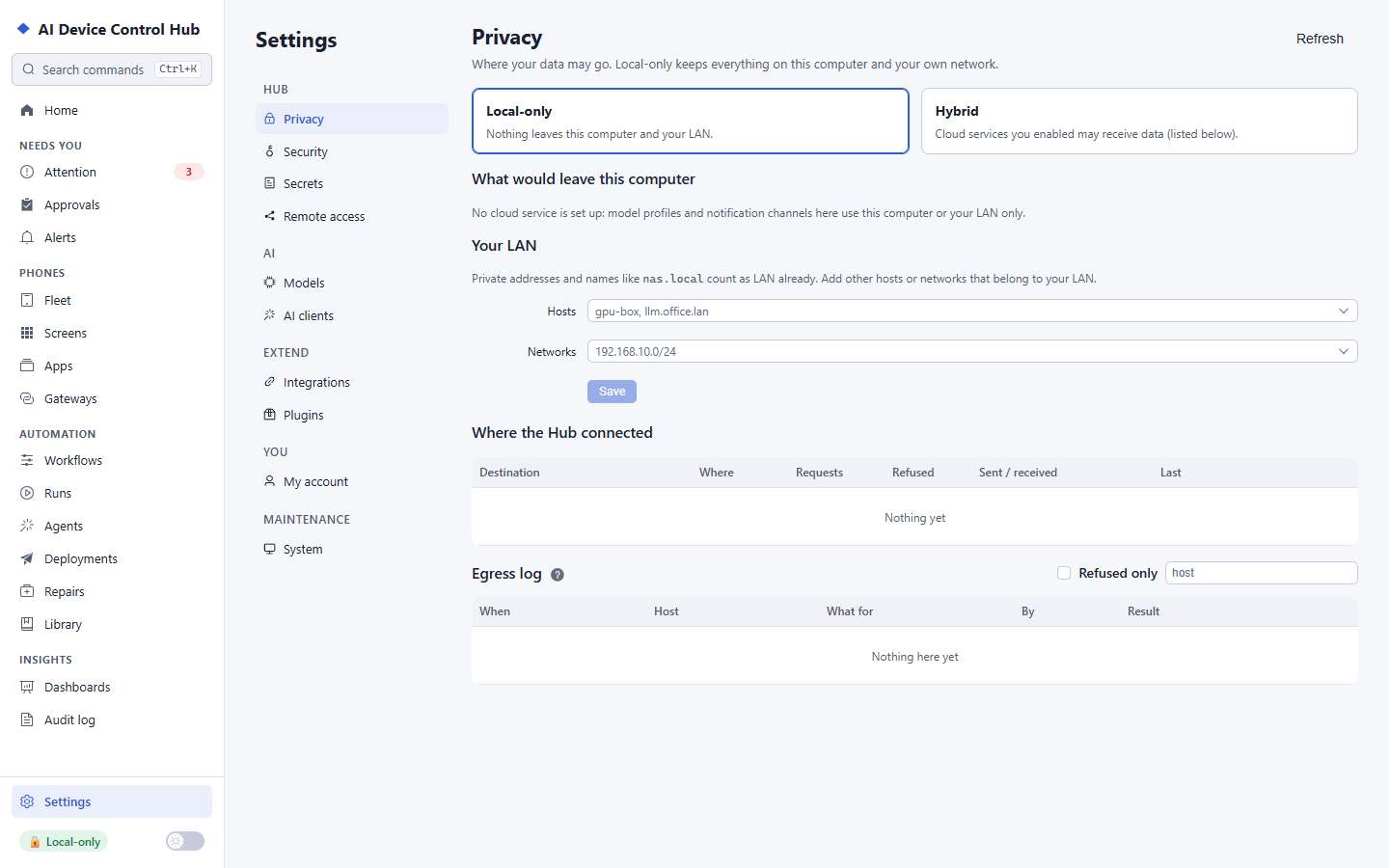
- Local first. The Hub runs on your computer and starts in local-only mode: nothing leaves it unless you turn something on, and the Privacy page lists every destination and what it would receive.
- Audit log. Every action on a phone is recorded with who did it; the log is hash-chained so changes can be detected.
- Approvals and roles. Require a person's approval for sensitive steps; give people and tokens only the rights they need.
- Secrets. Passwords are encrypted with a key in your operating system's keychain, typed on the phone and never shown.
- Remote access, if you want it. Use the Hub from a browser on another device over your own network or VPN, with passwords and two-factor sign-in.
Use cases
- Testing an app on many phones. Record the test once, run it on every phone after each build, and open the failed runs with their screenshots.
- A device lab or support desk. Keep an eye on every phone's health, take over the one a colleague asks about, and install builds on a group.
- Operations on company phones. Run routine checks on a schedule, get an alert when something breaks, and keep a record of who did what.
The Hub stops at human-only checks and has no features for getting around apps' anti-automation controls. You are responsible for having the right to automate the phones and apps you use.